Overview
Purpose: To guide users using Windows or Mac in adding a shared mailbox in classic, new and web version of outlook.
Audience: SD35 Staff
Estimated time to complete: 5 minutes
Shortcut Links
Prerequisites
Step-by-step Instructions
-
Open Outlook and go to File > Account Settings > Account Settings.

-
Select your email account and click Change.

-
Click More Settings, then go to the Advanced tab.

-
Click Add, enter the shared mailbox email address, and click OK.

-
Click Next, then Finish, and restart Outlook.
-
Restart Outlook after your admin adds you to the shared mailbox.
-
If it doesn’t appear automatically, right-click your account name in the Folder Pane.
-
Select Add shared folder or mailbox.

-
Enter the shared mailbox email address and click Add.
-
Open Outlook and on the top left go to Outlook > Settings > Accounts.
-
Select your mailbox and click Advanced.
-
Under Delegates tab, add additional mailboxes under the Open these additional mailboxes

-
Close the Accounts window, and the shared mailbox should appear.
-
Open Outlook and on the top left go to Outlook > Settings > Accounts.
-
Under Mail Accounts, Click your account name and select Delegates & Sharing

-
Under the Shared with Me tab, add the shared mailbox

- Close the Accounts window, and the shared mailbox should appear.
-
Sign in to your account in Outlook on the web.
-
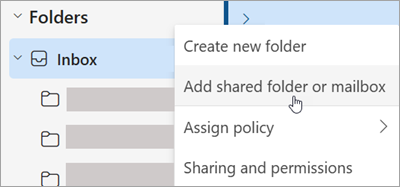
For Exchange Online mailboxes, right-click Folders in the left navigation pane, and then choose Add shared folder or mailbox. For Exchange on-premises mailboxes, right-click the name of your primary mailbox (such as Molly Dempsey) in the left navigation pane, and then choose Add shared folder or mailbox.
-
In the Add shared folder dialog box, type the name of the shared mailbox you are a member of.
Troubleshooting
-
Do I need admin permissions to add a shared mailbox?
Yes, your IT admin must grant you access before you can add the shared mailbox.
-
Can I send emails from the shared mailbox?
Yes, if IT has granted you Send As or Send on Behalf permissions.
-
Why can't I see the shared mailbox after adding it?
Try restarting Outlook. If it still doesn’t appear, check with IT to ensure you have the correct permissions.
Additional Resources